ACE Startup Guide
- IBM® App Connect Enterprise enables information packaged as messages to flow between different business applications, ranging from large traditional systems through to unmanned devices such as sensors on pipelines.
- Components diagram of IBM App Connect Enterprise
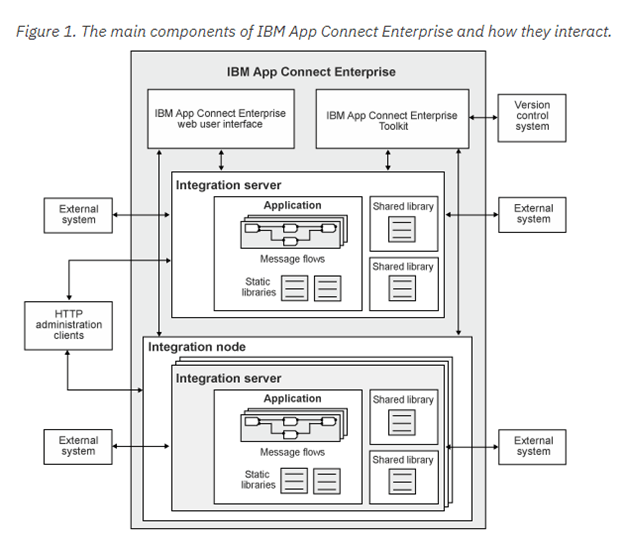
- AppConnectEnterprise(ACE) = IIB + IBM App Connect
- Download Here : https://www-01.ibm.com/marketing/iwm/iwm/web/pickUrxNew.do?source=swg-wmbfd&transactionid=451436300
Cloud :
- IBM AppConnectEnterprise combines the existing, industry-trusted technologies of IBM Integration Bus with IBM App Connect and with new cloud native technologies, to deliver a platform that supports the full breadth of integration needs across a modern digital enterprise.
- Using the capabilities of IBM App Connect Professional (bundled as part of IBM App Connect Enterprise), you can quickly connect hybrid environments that are comprised of public clouds, private clouds, and on-premises applications. You can develop integrations by using a “configuration, not coding” approach, with premade integration templates, and rich connectors to speed development time.
- With ACE we can deploy applications to dedicated AppConnectEnterprise(On-Premises servers) and also to IBM App connect on cloud(This is bundled as part of ACE v11).
Flexible Deployments:
- In IIB V10 we have Integration node, which is a central part under which we have Integration servers as partitions(Execution Group). In order to create a Integration server, we first need to create Integration node. Now in ACE11, it provides Integration Servers which can be created and started independently without integration node.
- In IBM App Connect Enterprise integration servers can be deployed in one of two ways – one or more integration servers under the management of an integration node or as independent integration servers. Independent integration servers are started directly as operating system processes, either using the IntegrationServer command in the IBM App Connect Enterprise command console, or through an external framework such as within a Docker container. The Integration server process can be pointed directly at previously generated integrations in a working directory on the file system, delivering a truly cloud-native “unzip and go” style of operation.
- Configurable services have been replaced with policies, to enable environment specific overrides. Policies can also be deployed within BAR files making configuration of App Connect Enterprise v11 much more flexible than its v10 predecessor.
- IBM Integration Bus provided configurable services to define properties that are related to external services with which the product can communicate. This information is now defined in a policy document. Policy documents can be deployed to IBM App Connect Enterprise as part of a BAR file. Policies can also be placed on the file system in a particular runtime environment to provide environment-specific overrides, enabling you to control the behavior of message flow nodes in message flows, without the need to redeploy your resources. A Policy editor is provided to create and configure policies.
GUI :
- ACE V11 is provided with enhanced web user interface. Similar to IIB v10 web user interface it has the options to start and stop the services/servers, pull stats for servers. In addition ACE v11 provides option to create , retrieve, update and delete operational services.
Operation Modes:
- Similar to IIB v10 , ACE v11 has operation modes which enables you to quickly identify the option that satisfies your business requirement.
Security :
- Admininstration access to Integration nodes and Integration Servers by using either HTTP basic authentication or by using SSL or TLS
Getting Started with App Connect Enterprise V11:
- Download link(Developer Edition) : https://www.ibm.com/account/reg/us-en/signup?formid=urx-32125
- After downloading the .exe file from above link, right click on it and run it as administrator. Then select the installation path.
- After successful installation, go to start menu and search for toolkit and open it. Select the file location for the workspace.
- In earlier version of IIB we should to get a default broker/IntegrationNode, but in ACE we need to create Integration Node.
- Creation of Integration Node: You can create by using command line console that comes with the ACE product mqsicreatebroker “brokername” (without double quotes). After running this command a broker is create on the system.
- Mqsilist is the command to check if the broker is created or not. It will return the list of all the IntegrationNodes residing on the system(Only of latest version brokers).
- After creating the IntegrationNode/Broker, right click on the Integration Nodes in the Integration explorer à Connect to an integration Node. Below screen pop ups. Fill the Hostname (localhost/ipaddress) and port (Mqsilist will give you the port number) and select Finsih. You’ll be connceted to the local broker. Same goes for remote brokers.
HelpfullLink : https://www.ibm.com/support/knowledgecenter/en/SSTTDS_11.0.0/com.ibm.etools.mft.doc/ae03270_.htm

- Creating of Integration Servers: In ACE integration servers can be created under integration nodes(like earlier versions) and also as standalone servers which are started directly as OS process.
- By Using Webuser Interface: Right click on the Integration Nodeàstart web user InterfaceàCreate a Server à Give it a Name. This will create IntegrationServer under IntegrationNode.

- By using Toolkit: Right click on the IntegrationNode in IntegratonExploreràNew Integration serverà Give it aa nameà OK. This will create IntegrationServer under IntegrationNode.

- By using commandLine :
mqsicreateexecutiongroup INODE -e IServer_2
This command will create IntegrationServer under IntegrationNode.
To create Standalone Integration Server:
- Create a working directory for the Integration server à mqsicreateworkdir c:\myaceworkdir\myserver This will create a work directory with a default configuration file called server.conf.yaml. with the default setting for the Integration server.
- Above step will create a server,next step is to start the IntegrationServer by running IntegrationServer –name myserver –work-dir C:\myaceworkdir\myserver
- Now your standalone integration server is ready and you can connect it to the toolkit. Right click on the IntegrationServers of Integration explorer àConnect to an Integration serverà fill host name (Localhost/Ipaddress) and port (You will get the port number from server.config.yaml file which is created in the working directory path as RestAdminListener)
- Configuring Integration Nodes/Servers : All the Node and server level properties are modified in the .Yaml fiels in ACE.
- The Node level properties are in .node.config.yaml which is stored at the ace workpath. In my case it is stored at C:\ProgramData\IBM\MQSI\components. You can then configure the operation of the integration node and associated resources, by modifying properties in the node.conf.yaml file. For example, you can set a REST administration port and an HTTPS port, you can enable administration security, and you can configure the trace level, activity logging, JVM, and the reporting of statistics and accounting data.
- An overrides subdirectory is also created under the integration node’s working directory. This overrides directory contains an additional node.conf.yaml configuration file, which contains property values that are set by IBM App Connect Enterprise commands, including the mqsicreatebroker command. These values override any values that are set for the same properties in the integration node’s base node.conf.yaml file.
- When commands are run that modify settings for the integration node, those modified settings are saved in a node.conf.yaml file in the overrides directory
- Restrat the Integration server/ Integration Node when you modify the .yaml file for changes to reflect the changes.
- Steps to Launch Debugger: Unlike earlier version we don’t the right click debug option in ACE. To launch debugger in ACE
- Go to the .server.config.yaml file and set the jvmdebugport number.
- Then restart the server. Then go to ACE toolkit.
- In ACE toolkit, click the down arrow to the rght of the debug button in the action bar and then click the debug configuration menu item.
- In the Debug configuraton dialog, right cclick the IBM App Connect Enterprise debug, and then click New.
- Enter the name and host and port number(Port number which was given to jvmdebugport in .server.config.yaml) and then click debug.
- Open the message flow that you want to debug in the Message Flow editor by double-clicking its name in the Application Development view.
- Add break points to the flow and switch to debugger perspective.
- To Deploy services on Cloud:
- Create a ibm bluemix or ibm cloud account.
- ManageàAccountàCreate a new organization. And inside organization create a new space.
- From dashboardàIntegrationà App connect and then host a app connect by selecting a region from the drop down and your organization and space names and then select create(Select the lite plan which is a 30 days trail).
- Launch App Connect(If no Launch app connect pop up shows up, then go to dashboardàCloud foundary Servicesà Select your resource. Then launch app connect)
- To Debug services deployed on IBM App Connect:
- Click on the three dots on the server in IBM App connect and select configure remote debugging..(This option is seen only if server is in stopped state).
- Set a debugging port number in the configure remote debugging screen as shown below (The debug port number must be unique with the system i.e., the machine you want to start debugging) and then click next.
 Integration Consultant